Templates
Build a template with variables and buttons, submit it to Meta and fix rejections.
2 min video14 stepsEnglish and हिंदी
Language
Step by step
The same steps in writing, with a screenshot for each.
1. Your templates
WhatsApp only lets a business start a conversation, or write after 24 hours of silence, with a template that Meta has approved.
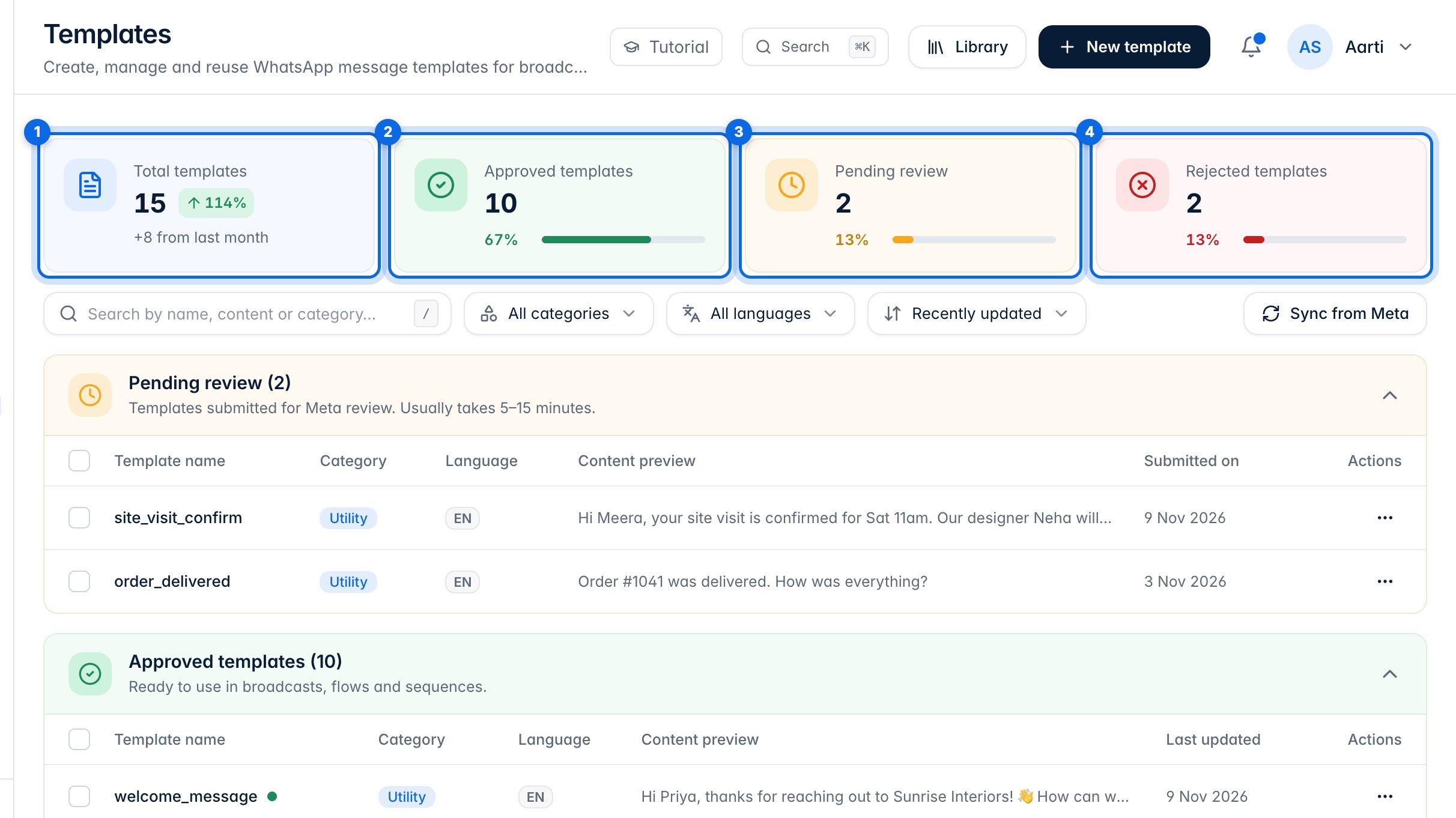
The cards at the top count all your templates (1), and how many are approved (2), waiting for Meta's review (3) or rejected (4).
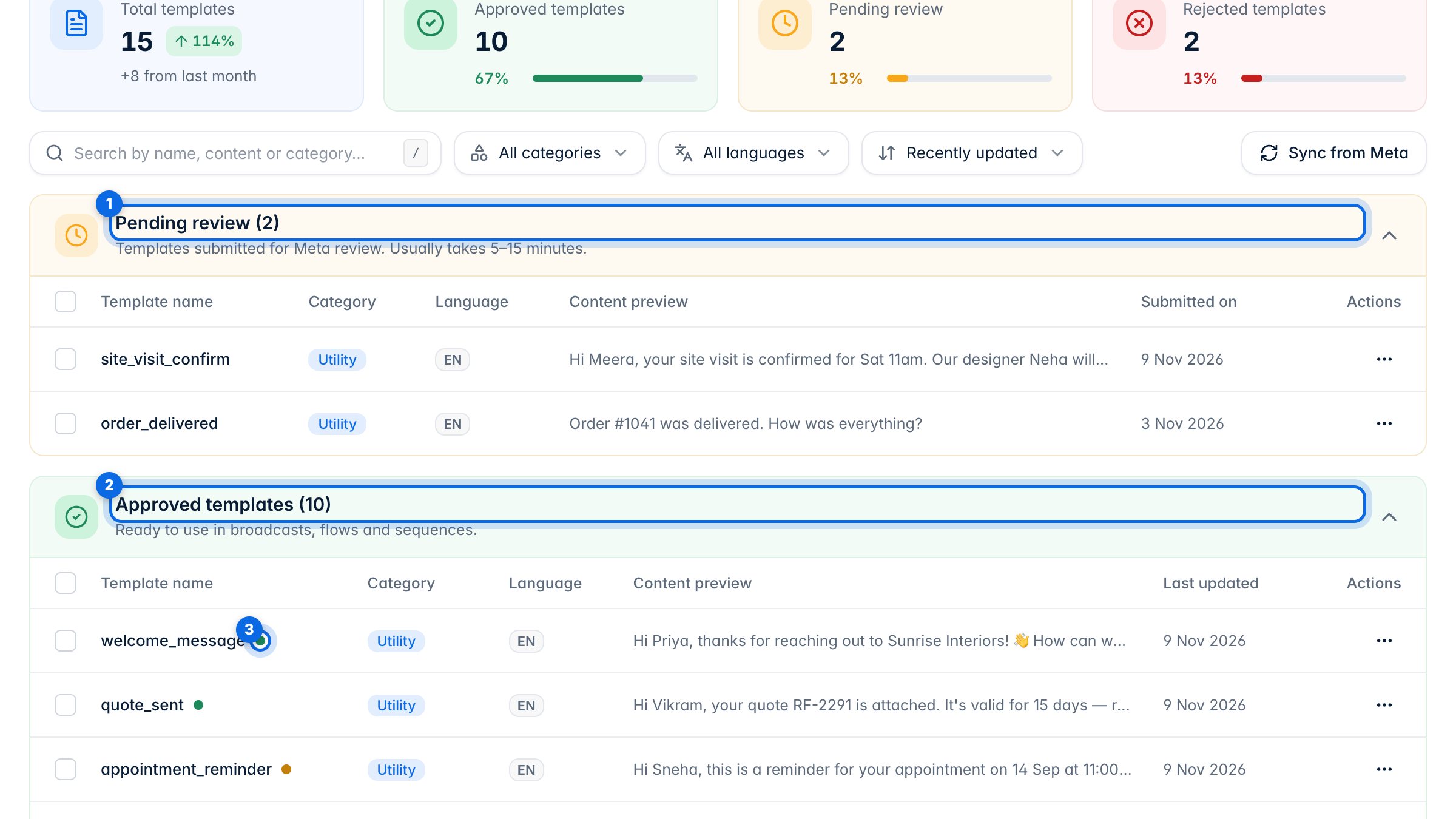
Templates are grouped by status: pending review (1), approved (2), rejected, and drafts. Only approved templates can be used in broadcasts, flows and sequences. The dot next to a name (3) is Meta's quality rating: green is high, amber is medium.
2. Search and filter
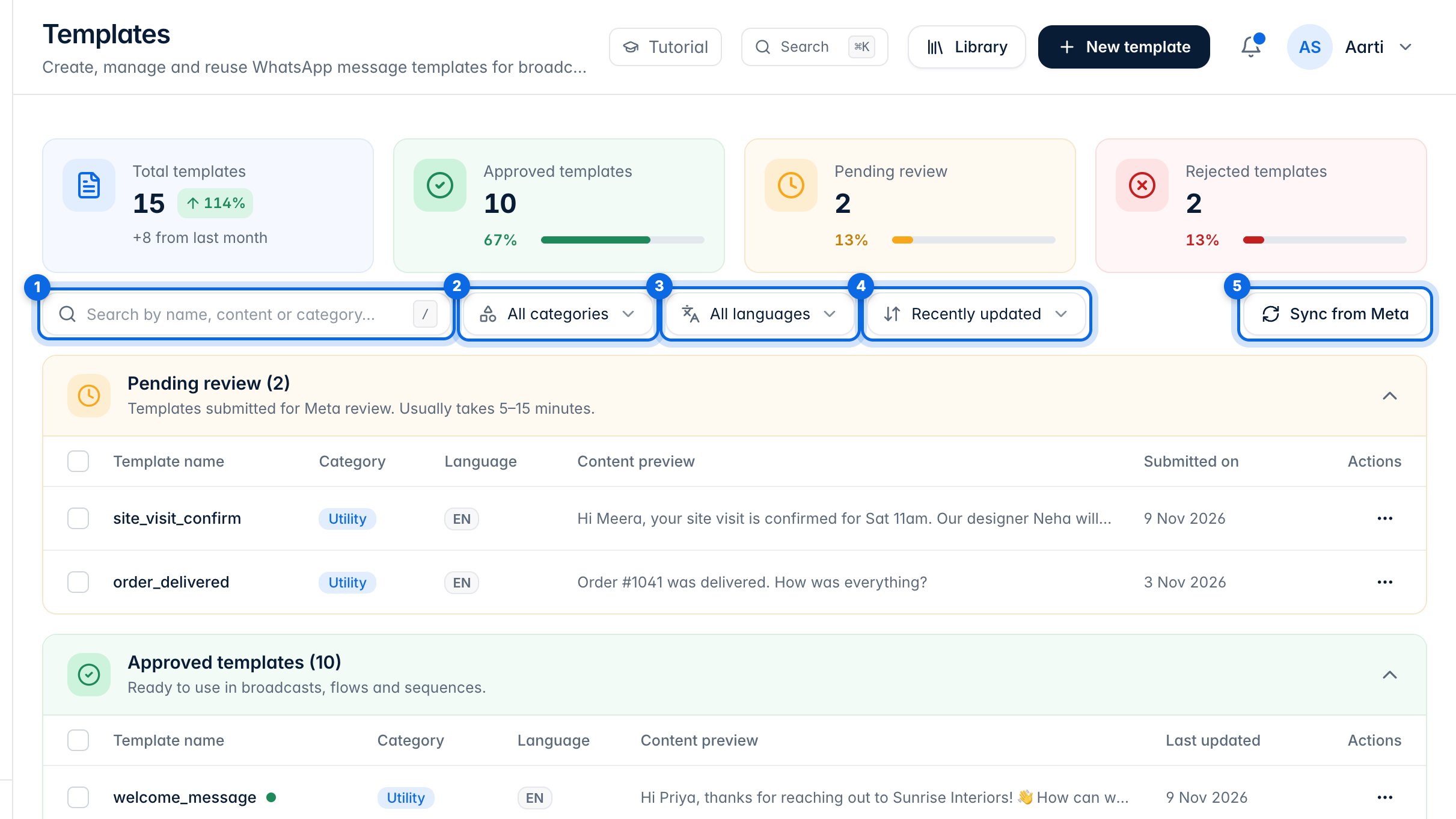
Search by name or wording (1). Filter by category (2) or language (3), and change the order (4). Sync from Meta (5) brings in the latest status of every template.
3. Start from the library
Click Library for ready-made templates.
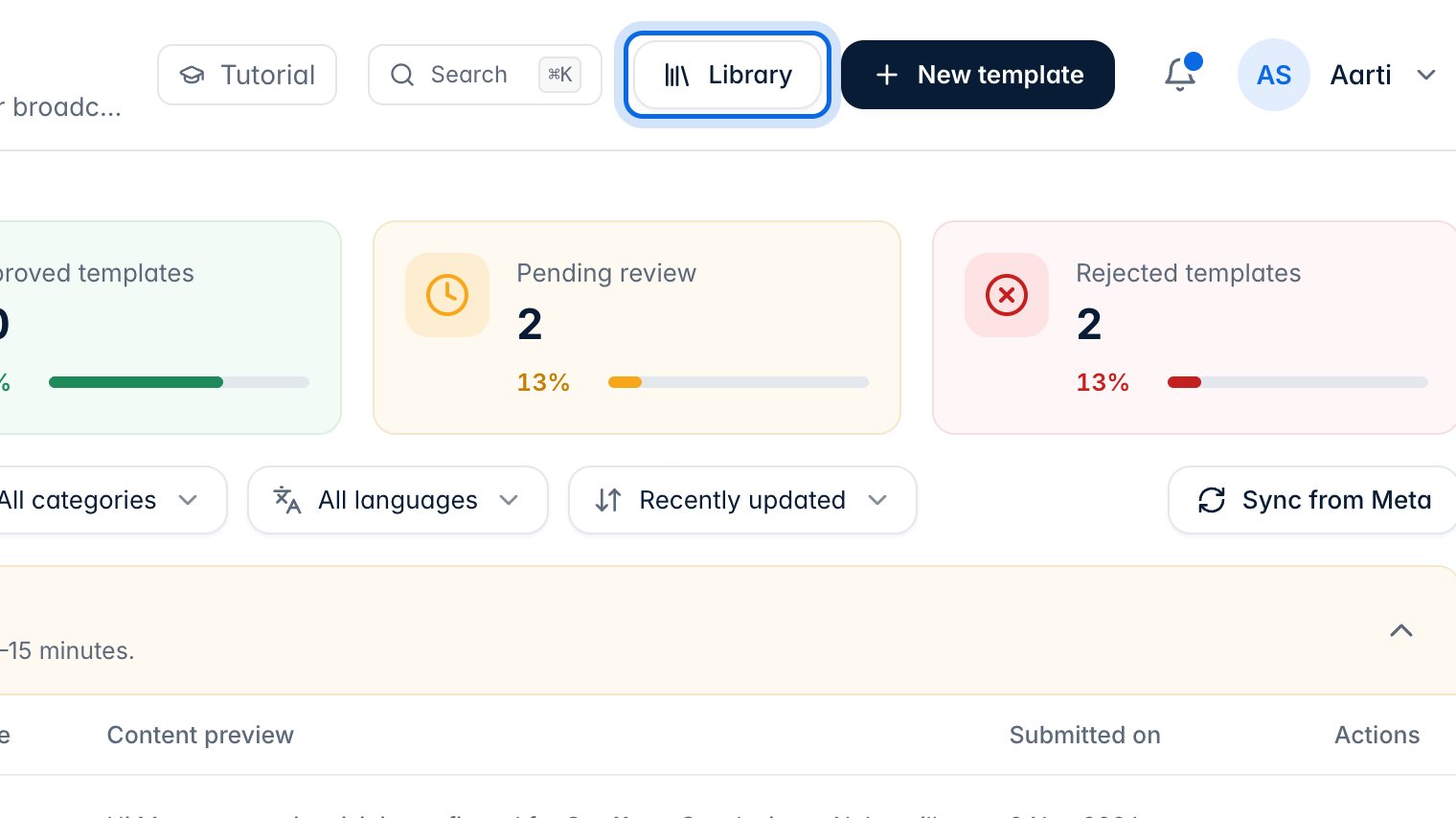
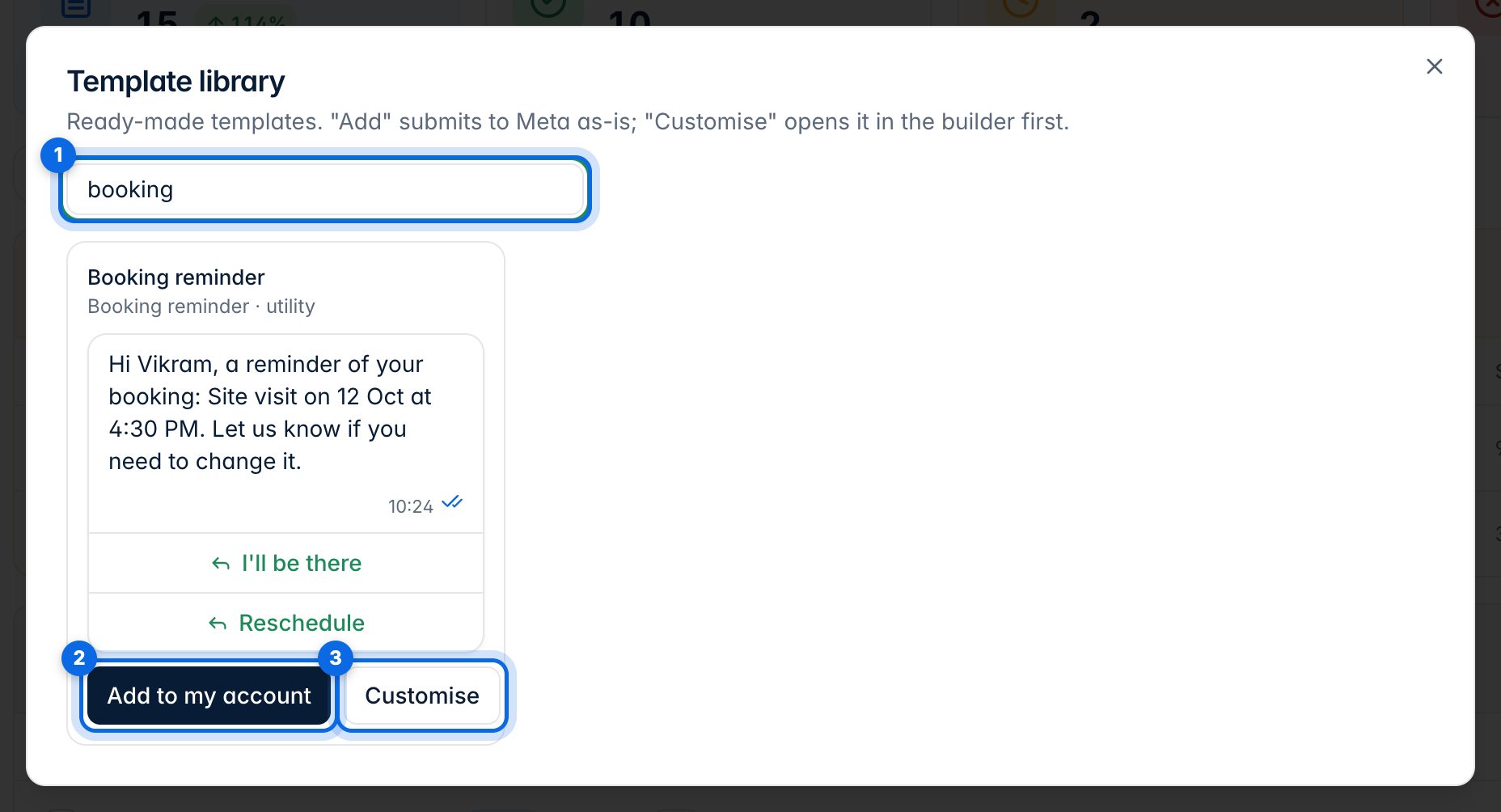
Search the library (1). Add to my account (2) sends the template to Meta as it is. Customise (3) opens it in the builder first, so you can change the wording.
4. Name, language and category
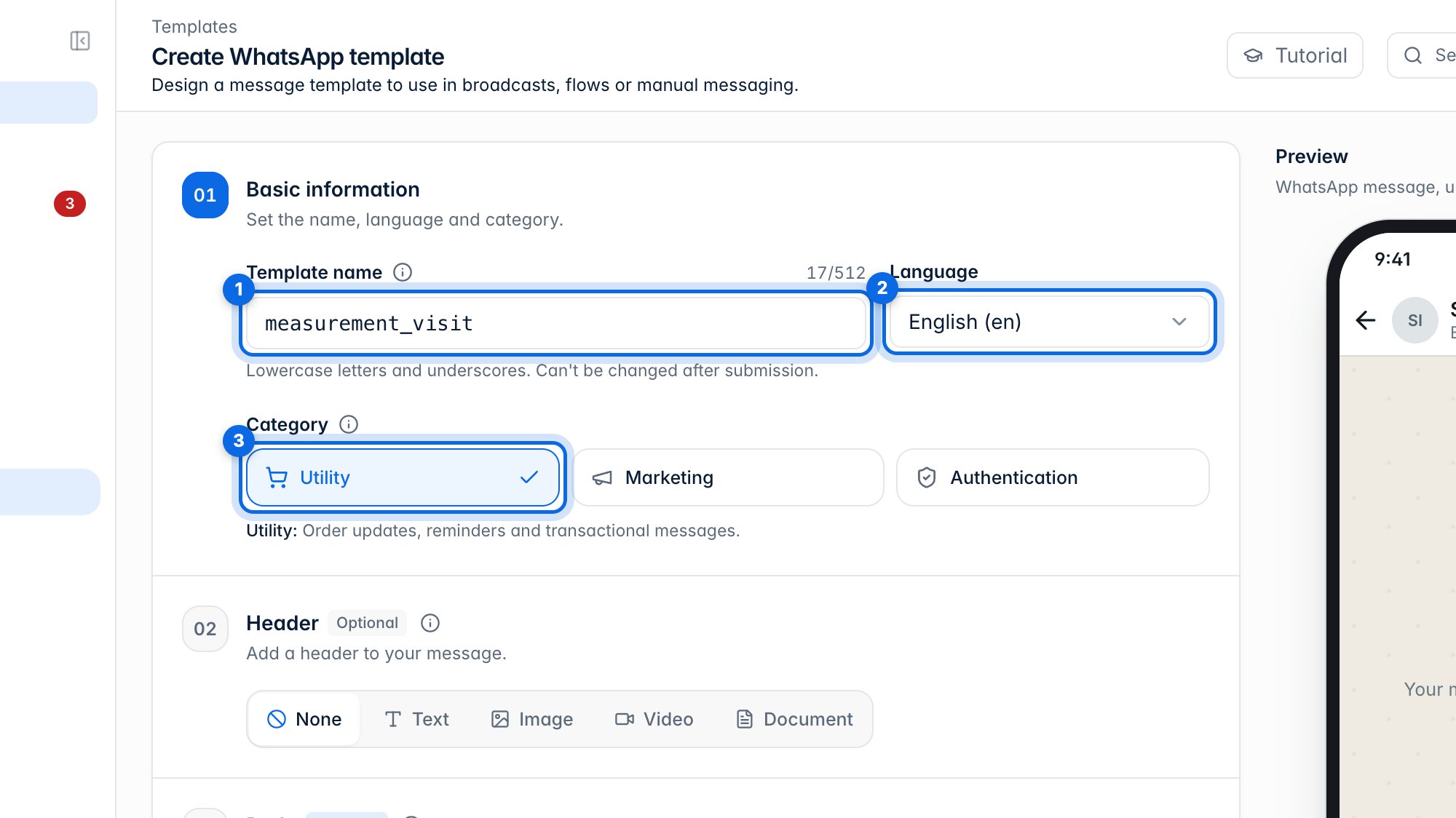
Click New template. Give it a name (1) in lowercase letters and underscores; it can't be changed after you submit. Choose the language (2) and category (3): Utility for updates and reminders, Marketing for offers, Authentication for login codes. Meta may change a category that doesn't match.
5. Header, message and variables
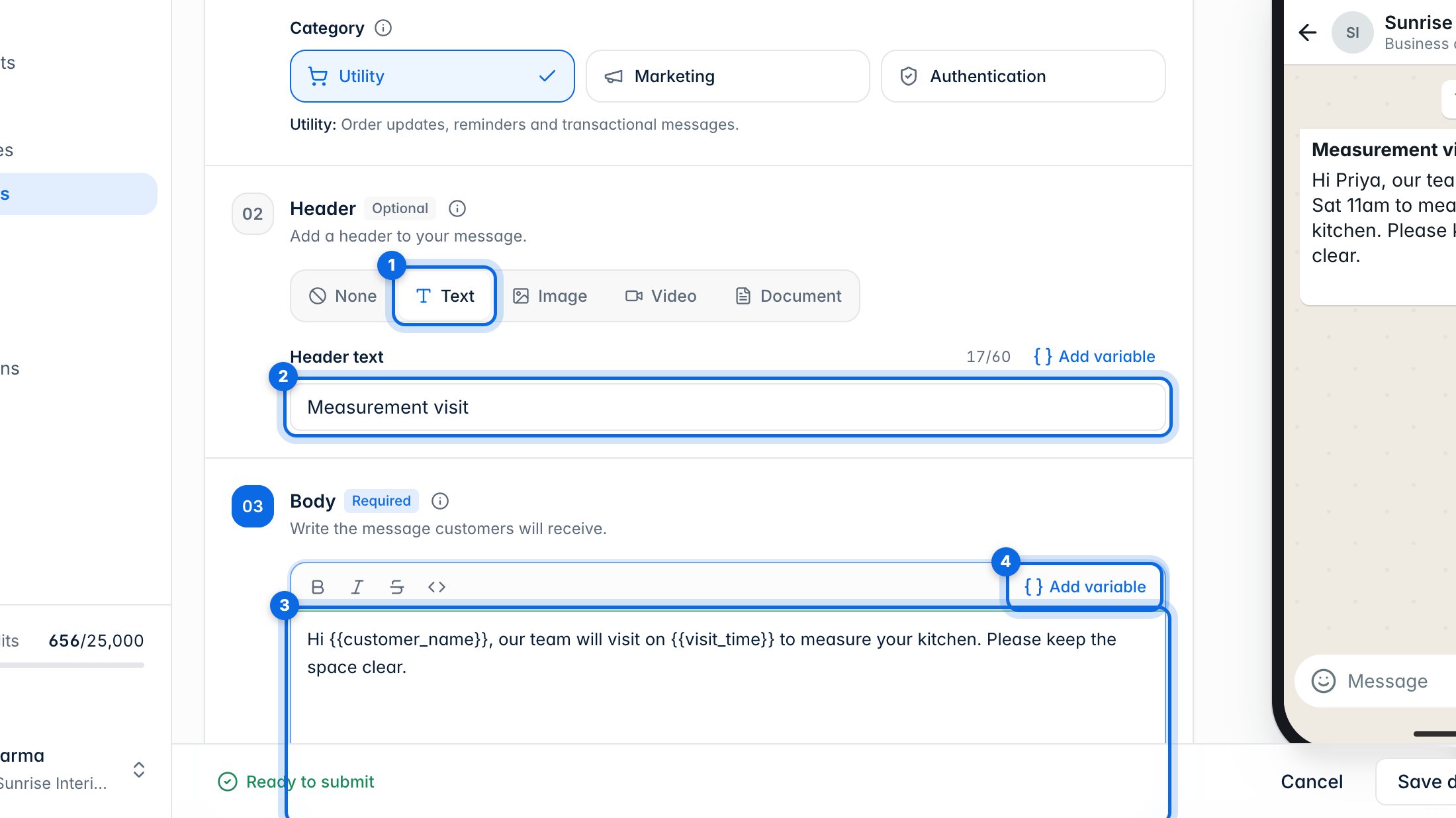
A header is optional: pick Text (1) and type it (2), or use an image, video or document. Write the message in the body (3). Add variable (4) puts a blank in the message that's filled in for each customer, like their name.
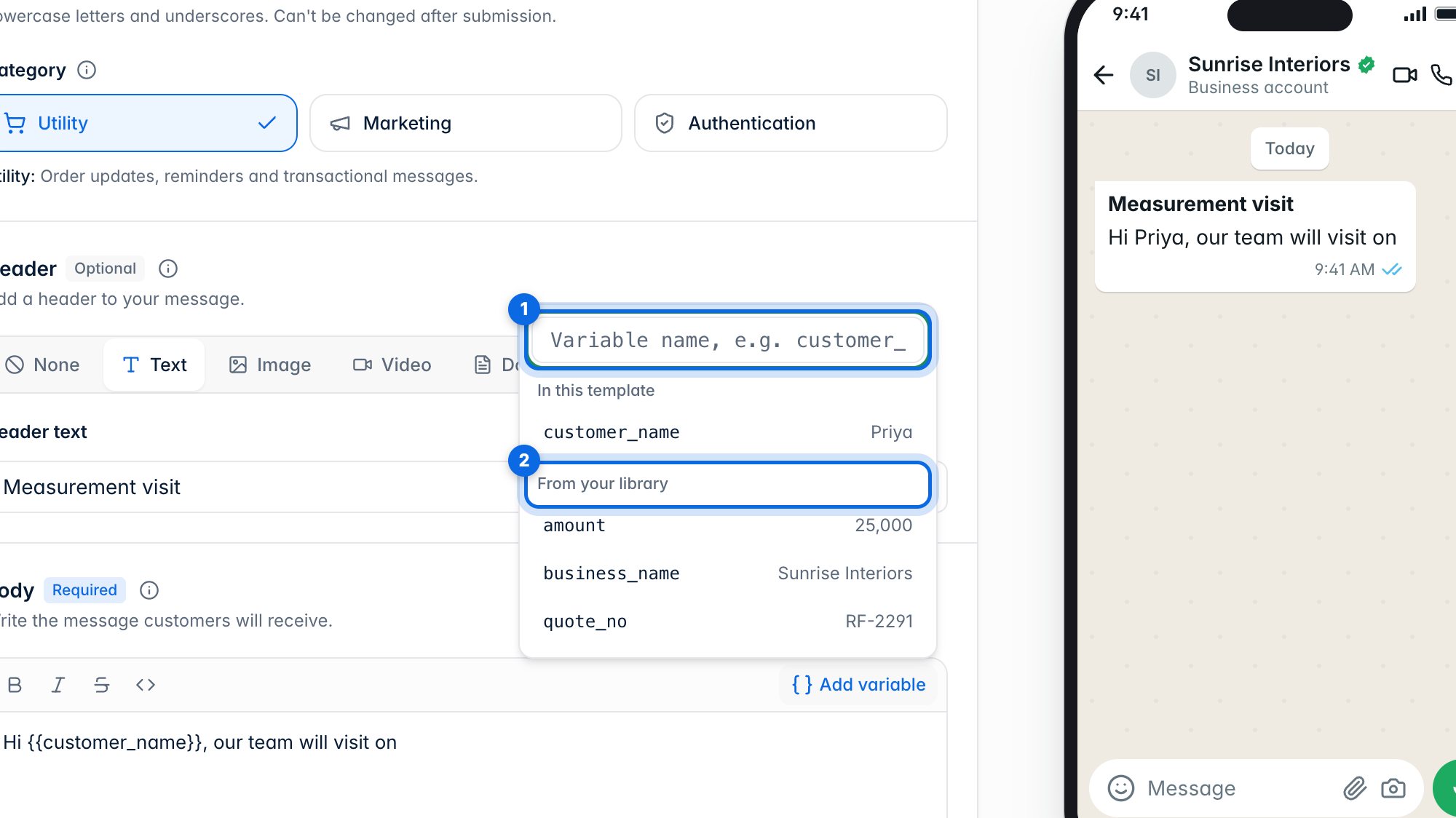
Type a new variable name (1), or pick one you've used before from your library (2).
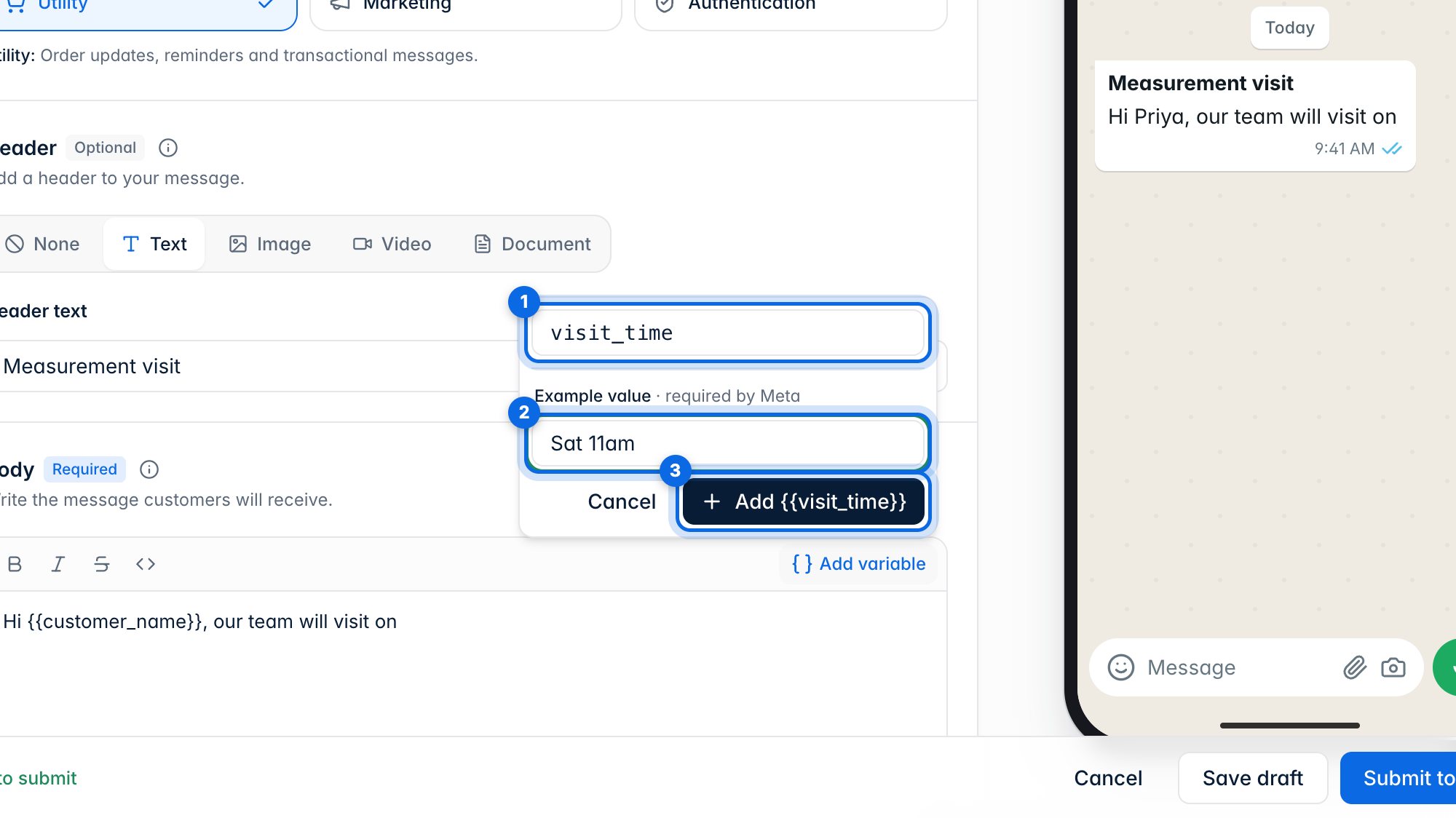
A new variable needs an example value (2), which Meta uses to review the template. Then click Add (3).
6. Footer and buttons
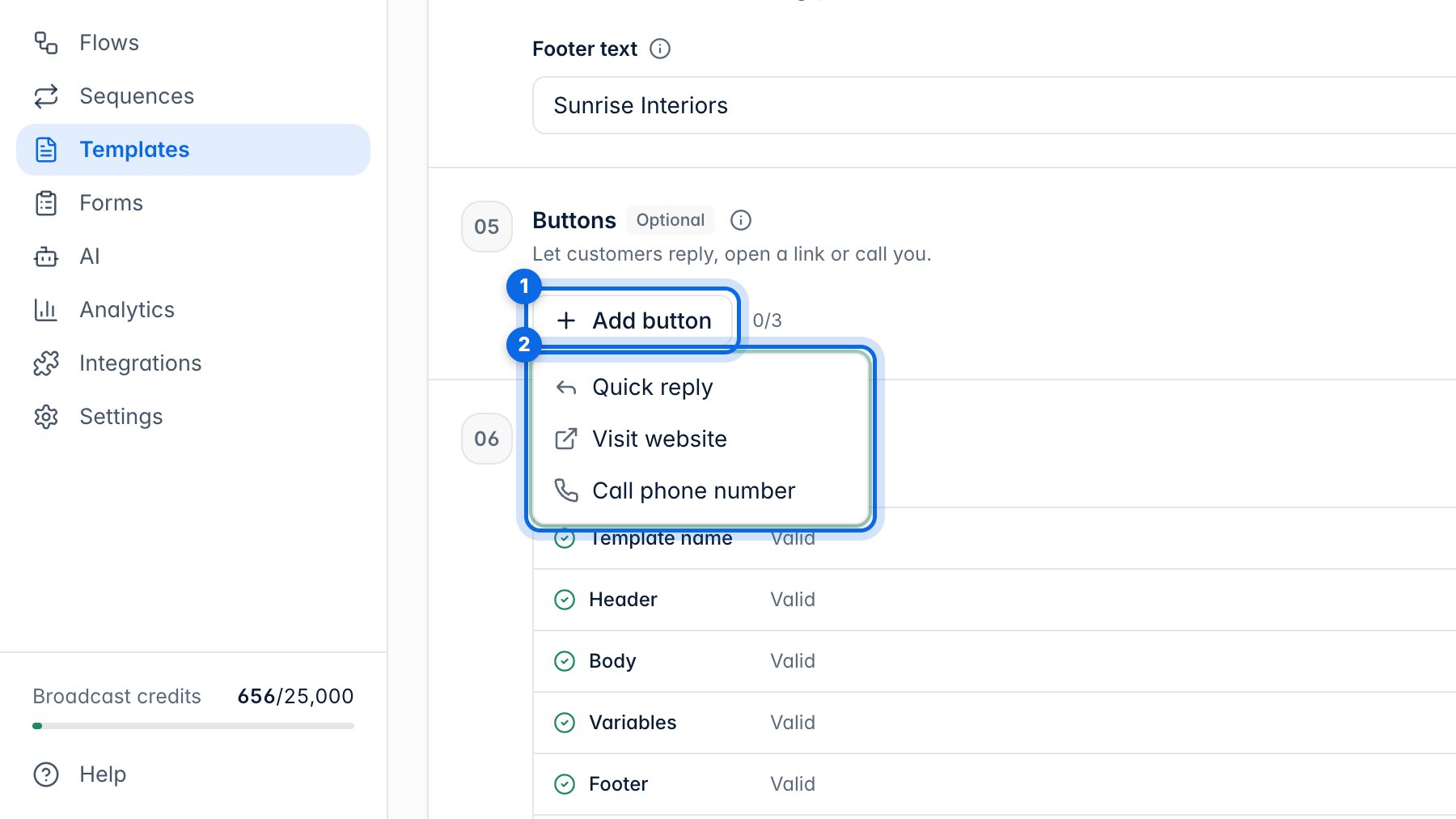
Add button (1) offers up to three buttons (2): a quick reply, a website link, or a call to your number. Quick replies need a flow to answer the tap.
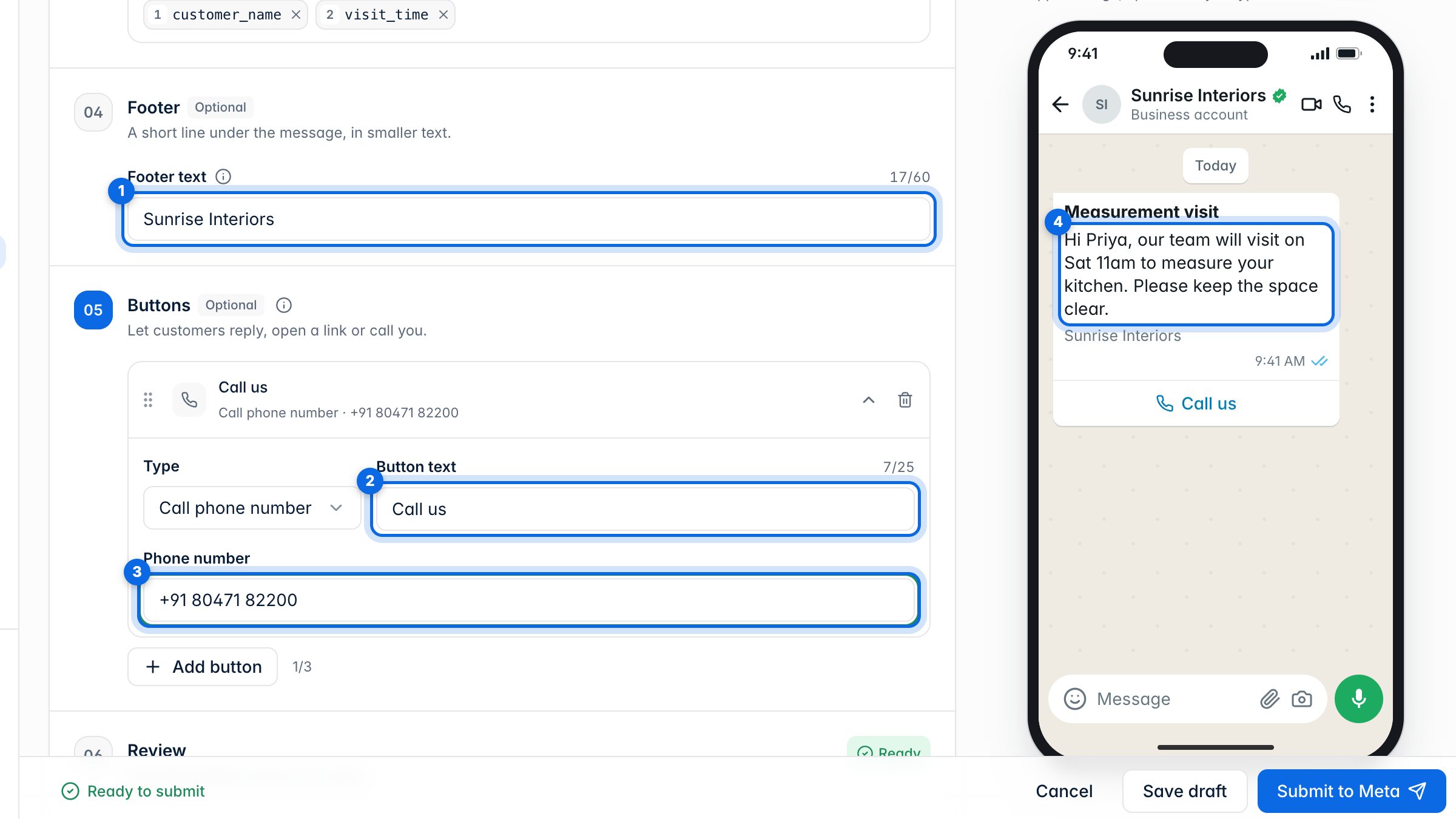
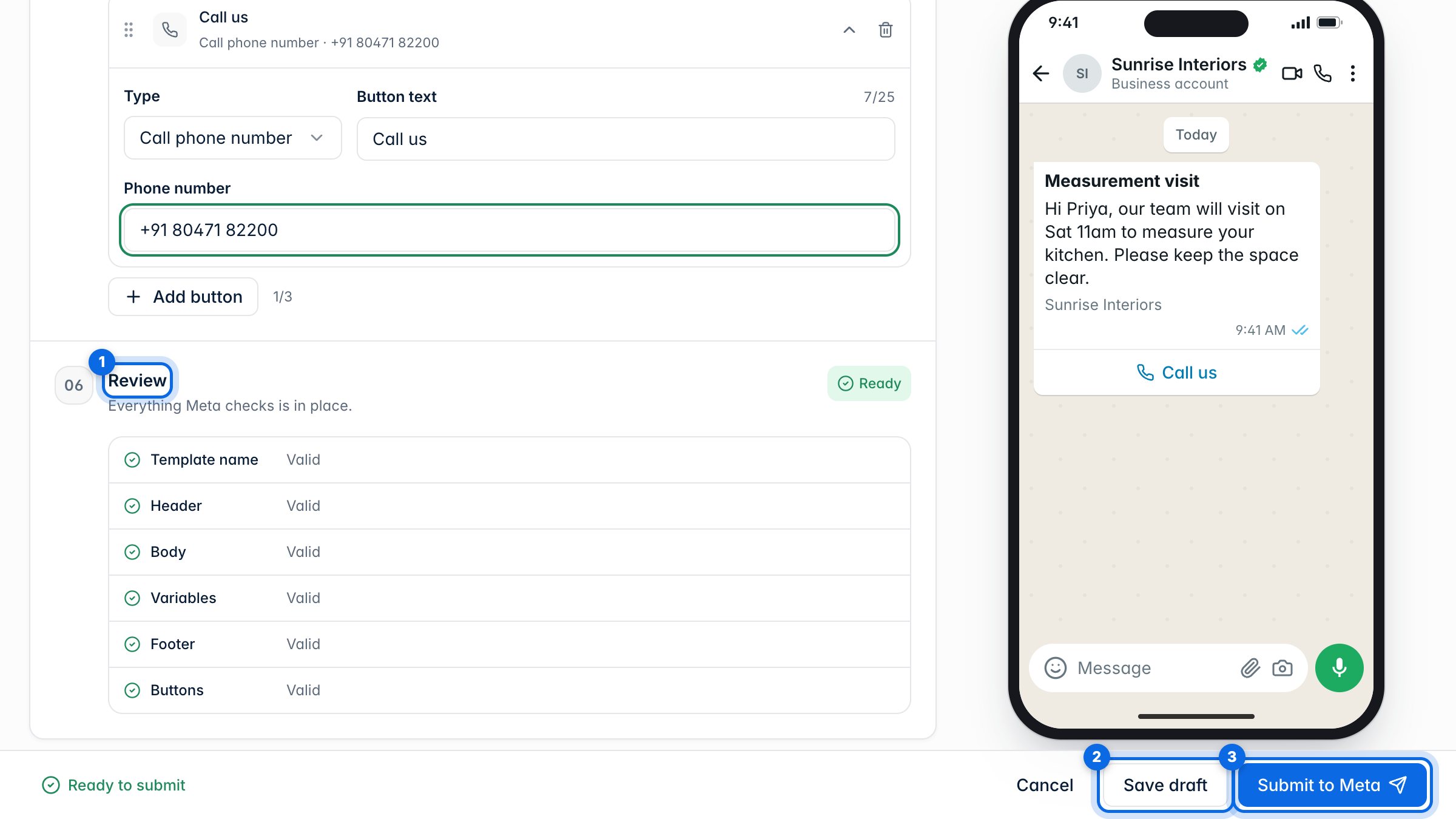
Add a short footer if you like (1). For a call button, enter its text (2) and phone number (3). The preview (4) updates as you type, the way customers will see it.
7. Check and submit to Meta
Review (1) checks everything Meta looks at and tells you what to fix. Save draft (2) keeps it here without sending. Submit to Meta (3) sends it for review; it moves to Pending review, and Meta usually answers within minutes.
8. Preview, edit and fix rejections
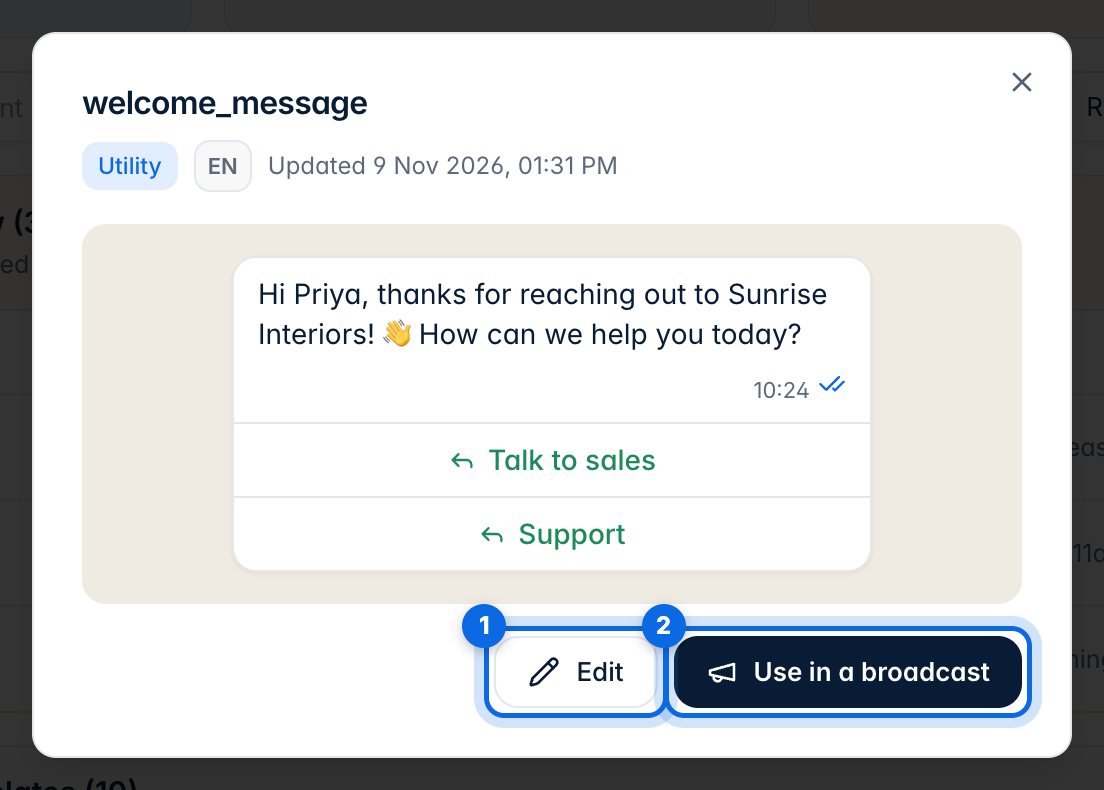
Click any template to preview it. From there you can edit it (1) or use it in a broadcast (2).
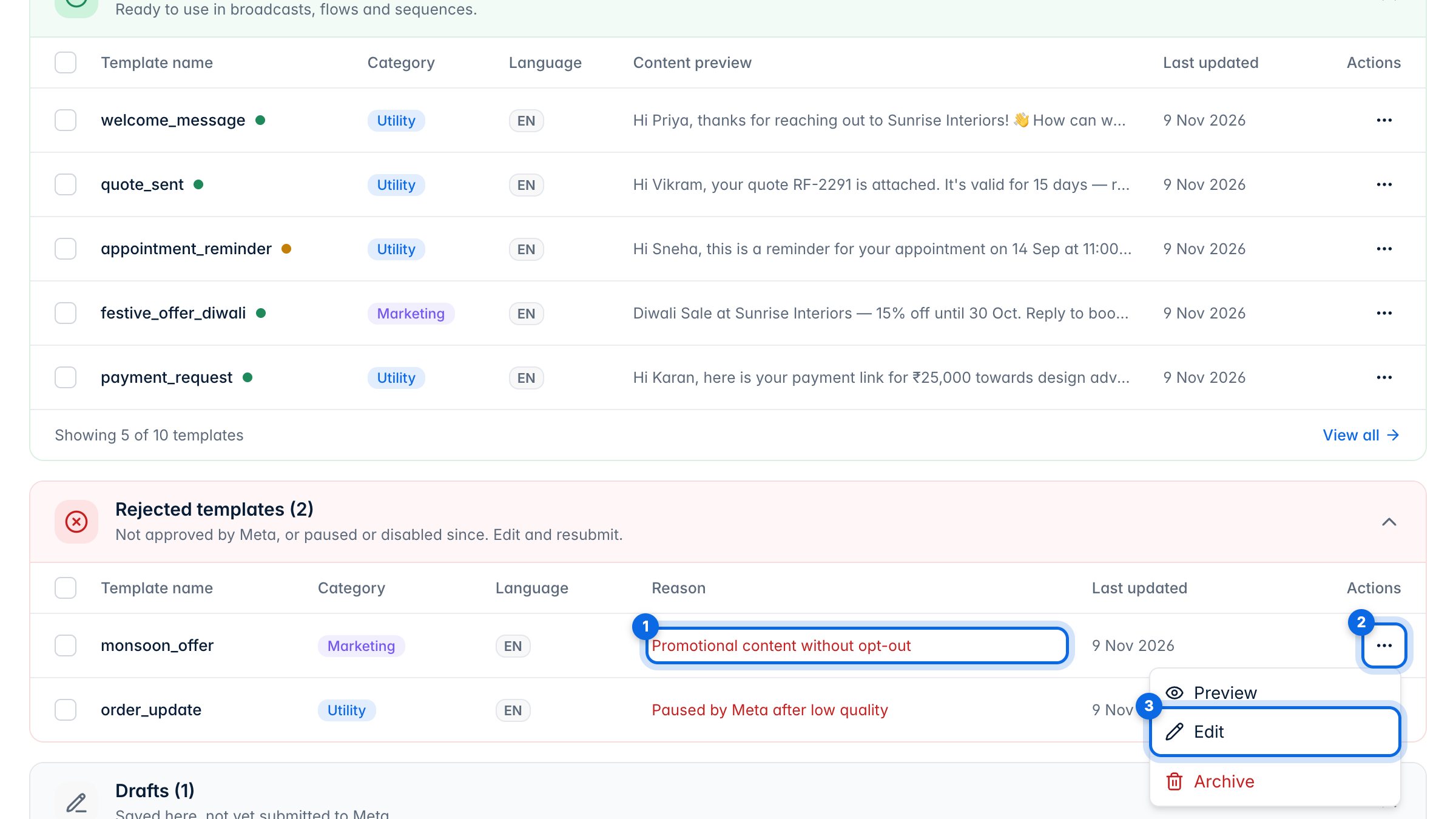
A rejected template shows Meta's reason (1). Open its menu (2), choose Edit (3), fix the wording and submit it again.