AI assistant
Set the assistant's tone and limits, teach it your business and check its replies.
2 min video8 stepsEnglish and हिंदी
Language
Step by step
The same steps in writing, with a screenshot for each.
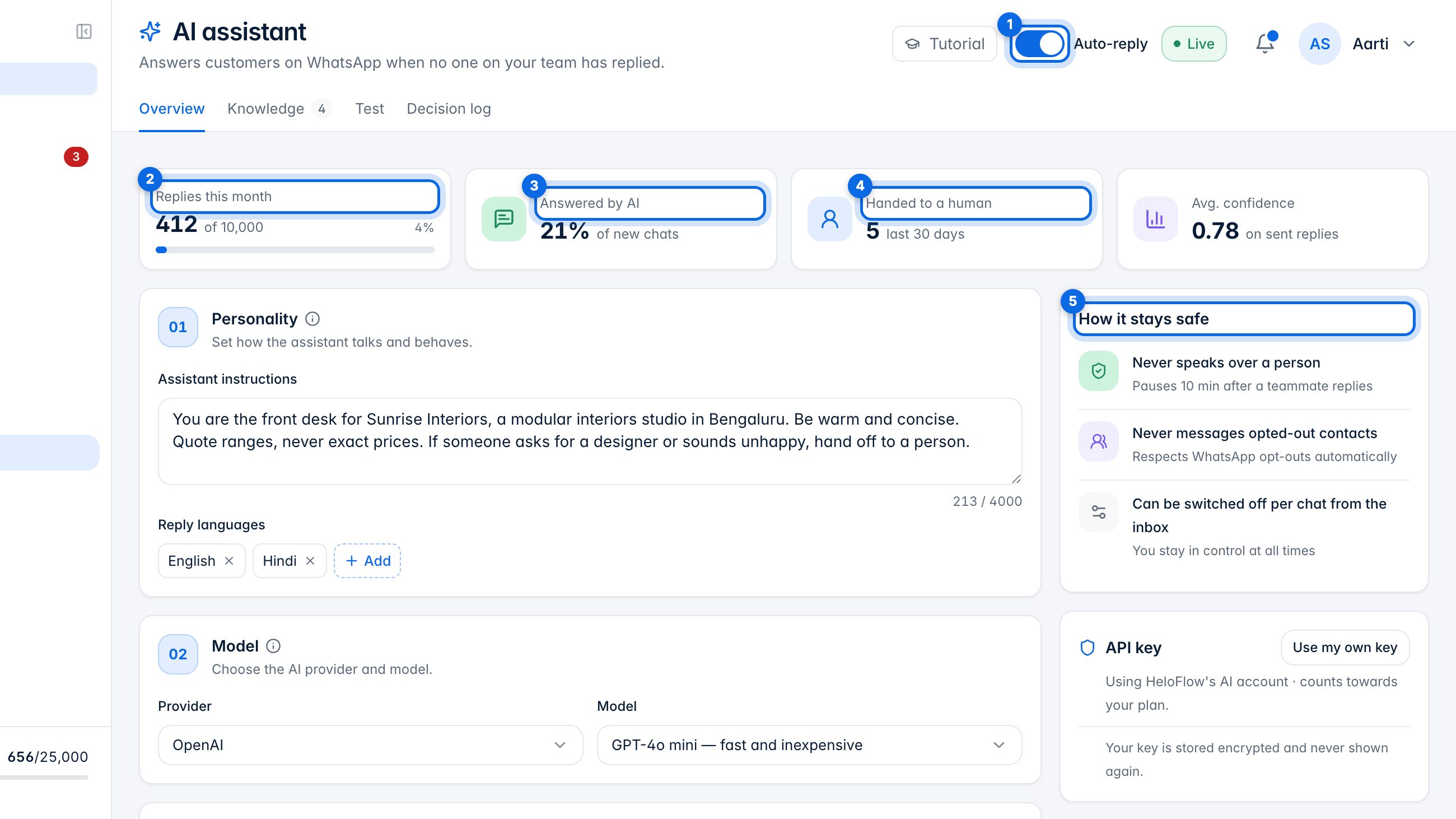
1. How the assistant works
The assistant answers customers on WhatsApp when no one on your team has replied. Auto-reply (1) switches it on or off. The cards show replies this month (2), how many new chats it answered (3) and how many it handed to a person (4). How it stays safe (5): it never speaks over a teammate, never messages opted-out contacts, and can be switched off for any chat from the inbox.
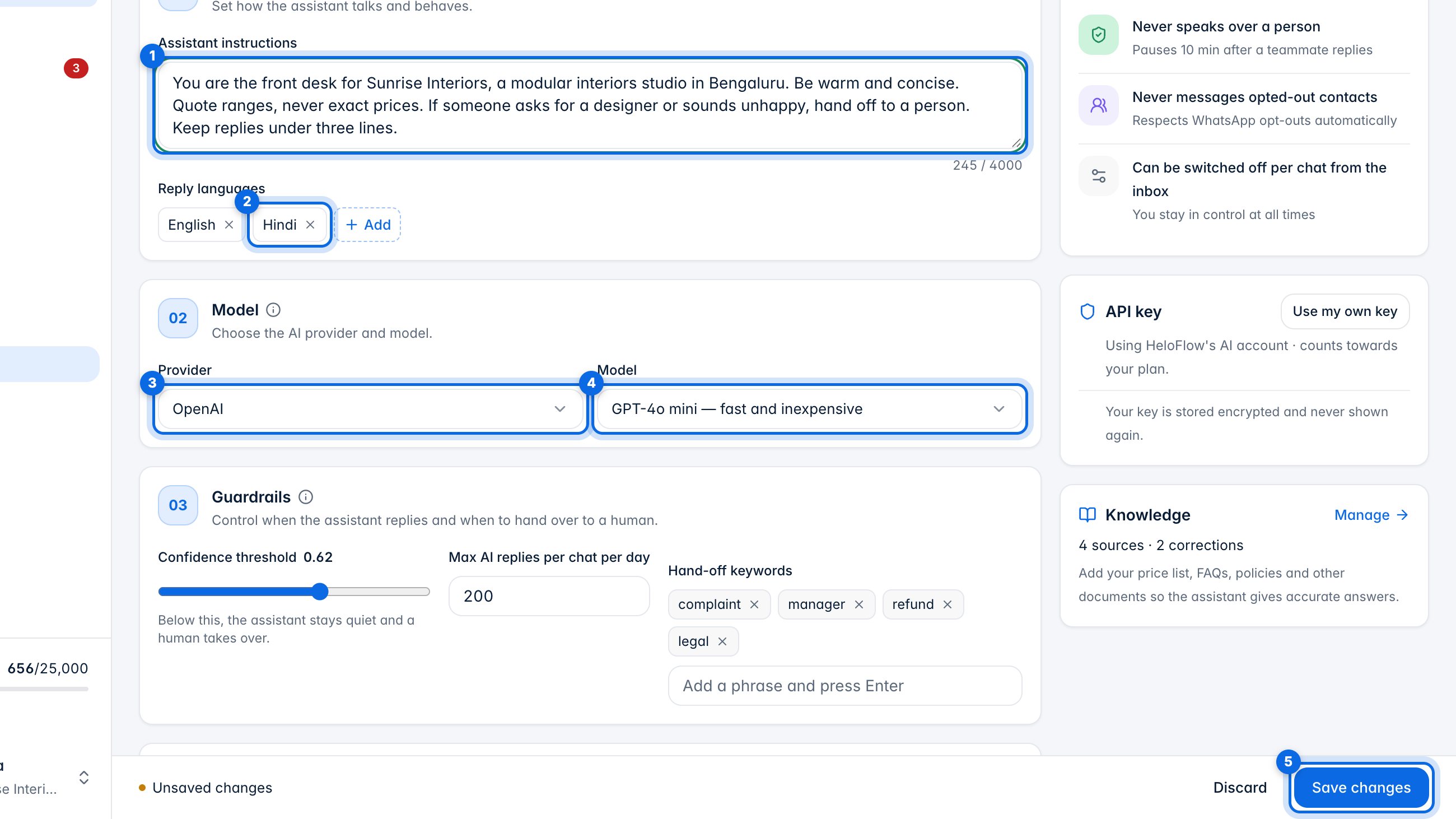
2. Personality and model
Tell the assistant who it is and how to talk (1), and which languages to reply in (2). Pick the AI provider (3) and model (4). It runs on HeloFlow's AI account, or on your own key from API key. Click Save changes (5).
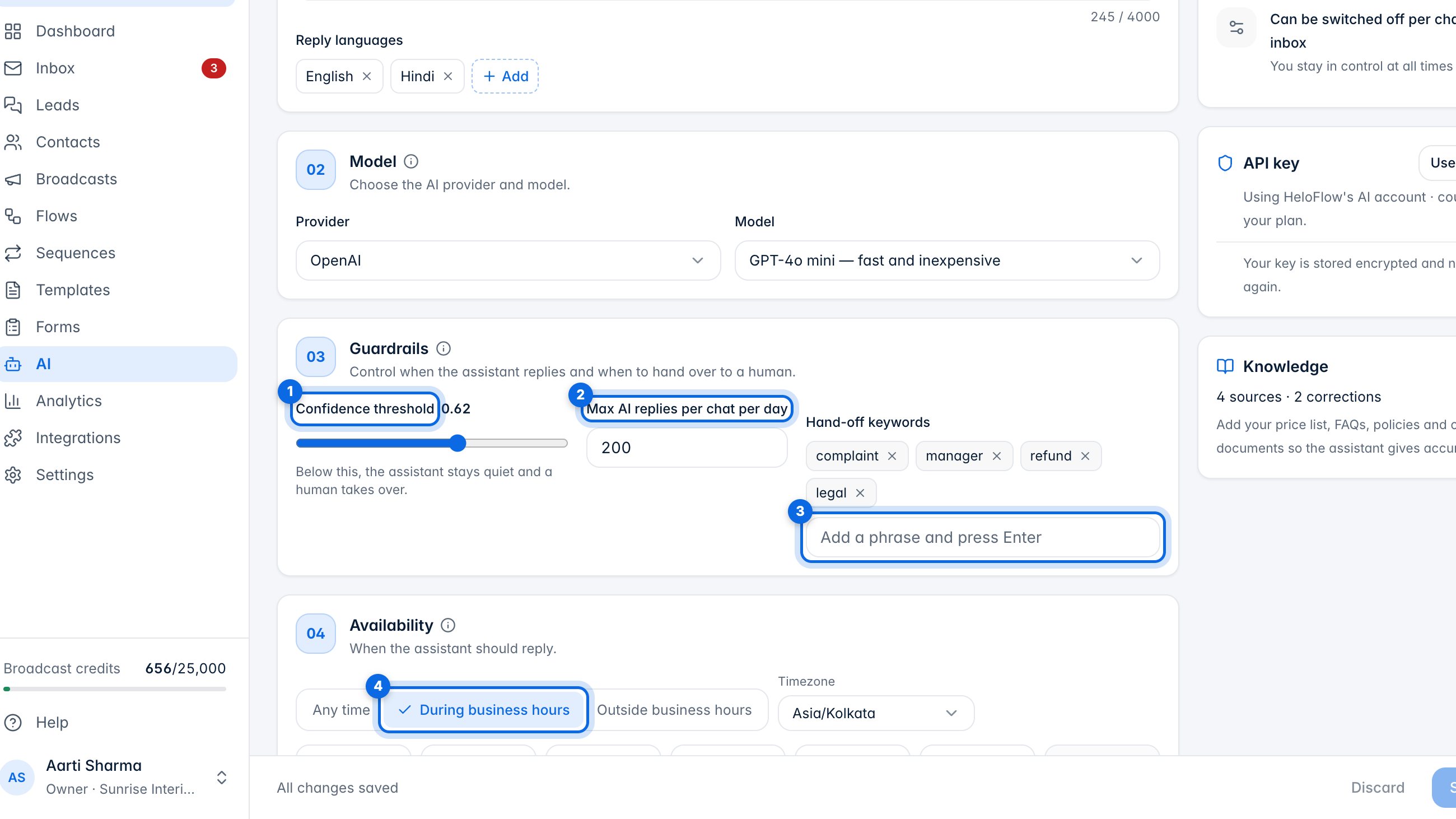
3. Guardrails and hours
Below the confidence threshold (1) the assistant stays quiet and a person takes over. Limit how many AI replies a chat gets each day (2). Add hand-off phrases (3), like “manager” or “refund”, that always go to a person. Choose when it replies (4): any time, during business hours or outside them.
4. Teach it your business
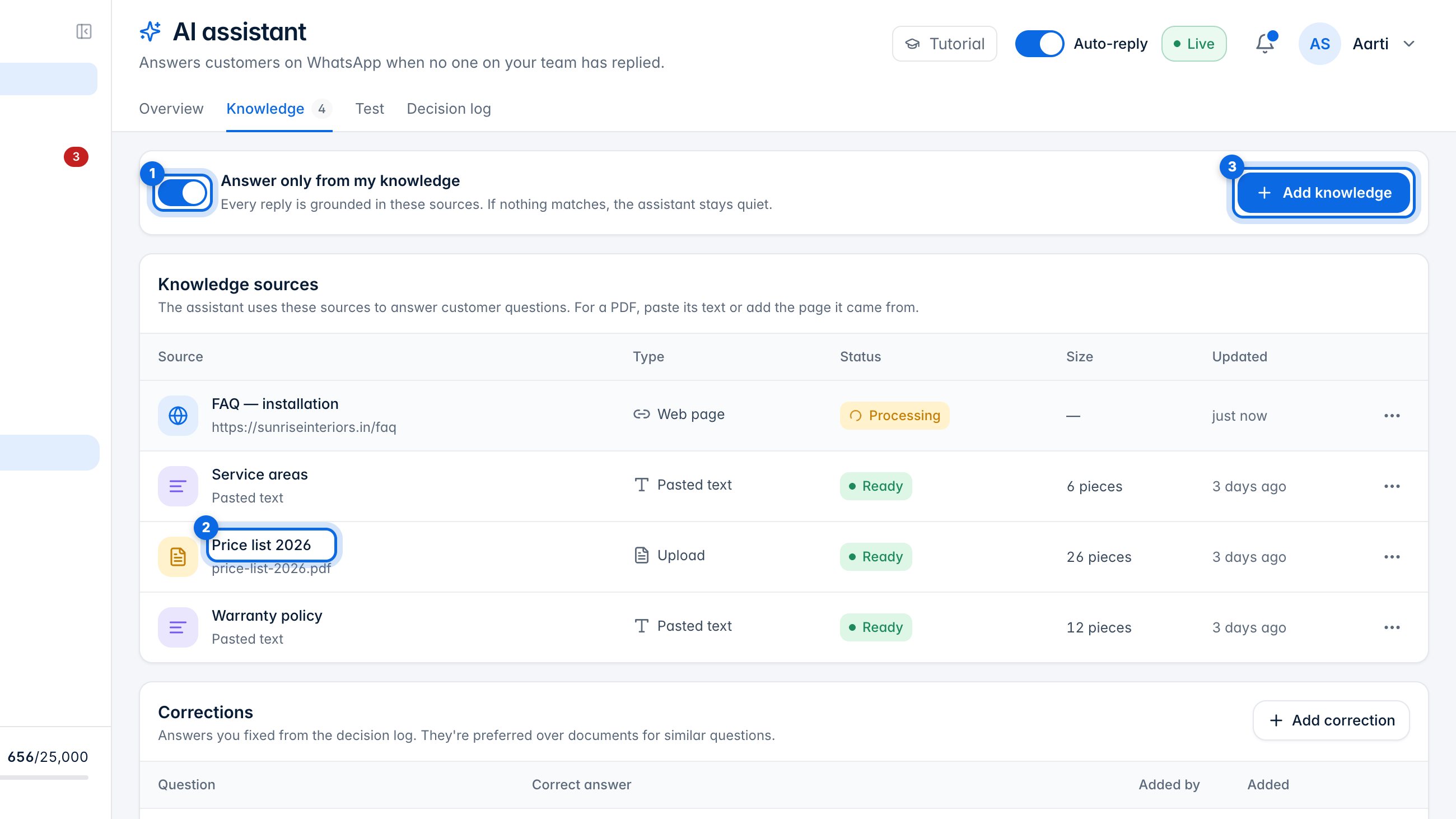
With Answer only from my knowledge on (1), every reply comes from your sources (2); if nothing matches, the assistant stays quiet. Click Add knowledge (3) to add more.
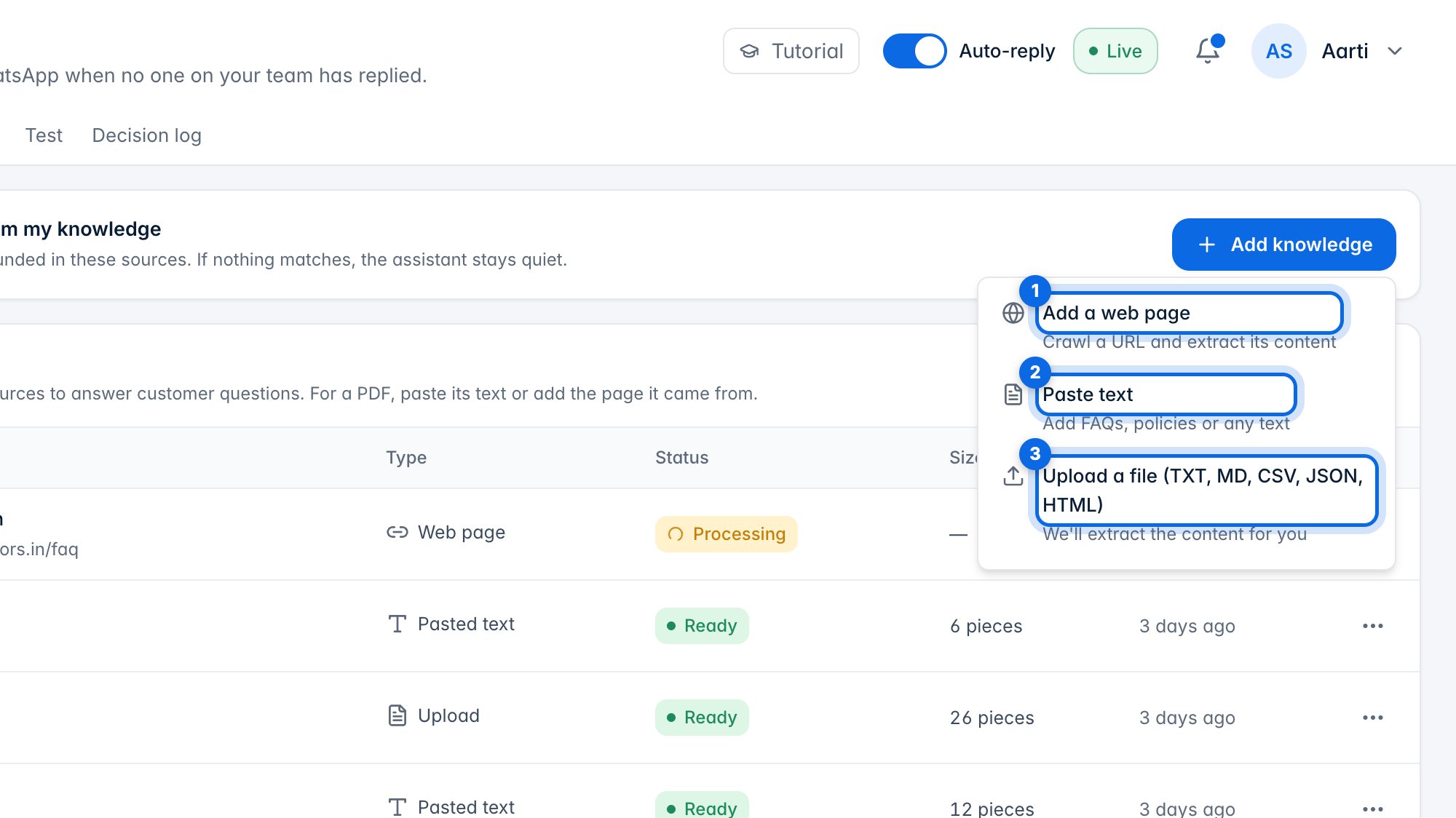
Add a web page (1), paste text such as prices or policies (2), or upload a file (3). For a PDF, paste its text or add the page it came from.
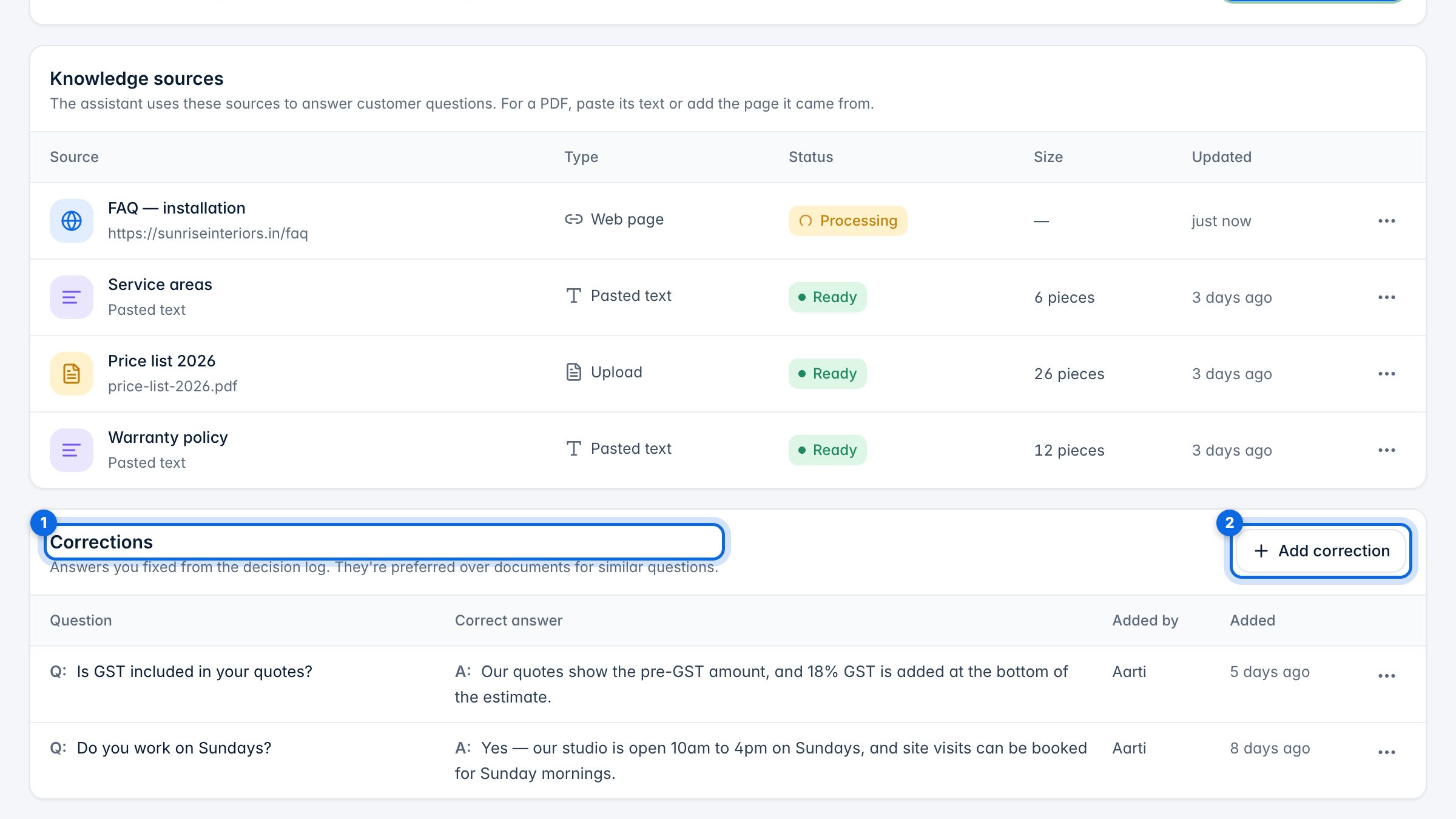
Corrections (1) are answers you fixed. They're preferred over documents for similar questions. Add correction (2) adds one by hand.
5. Test it as a customer
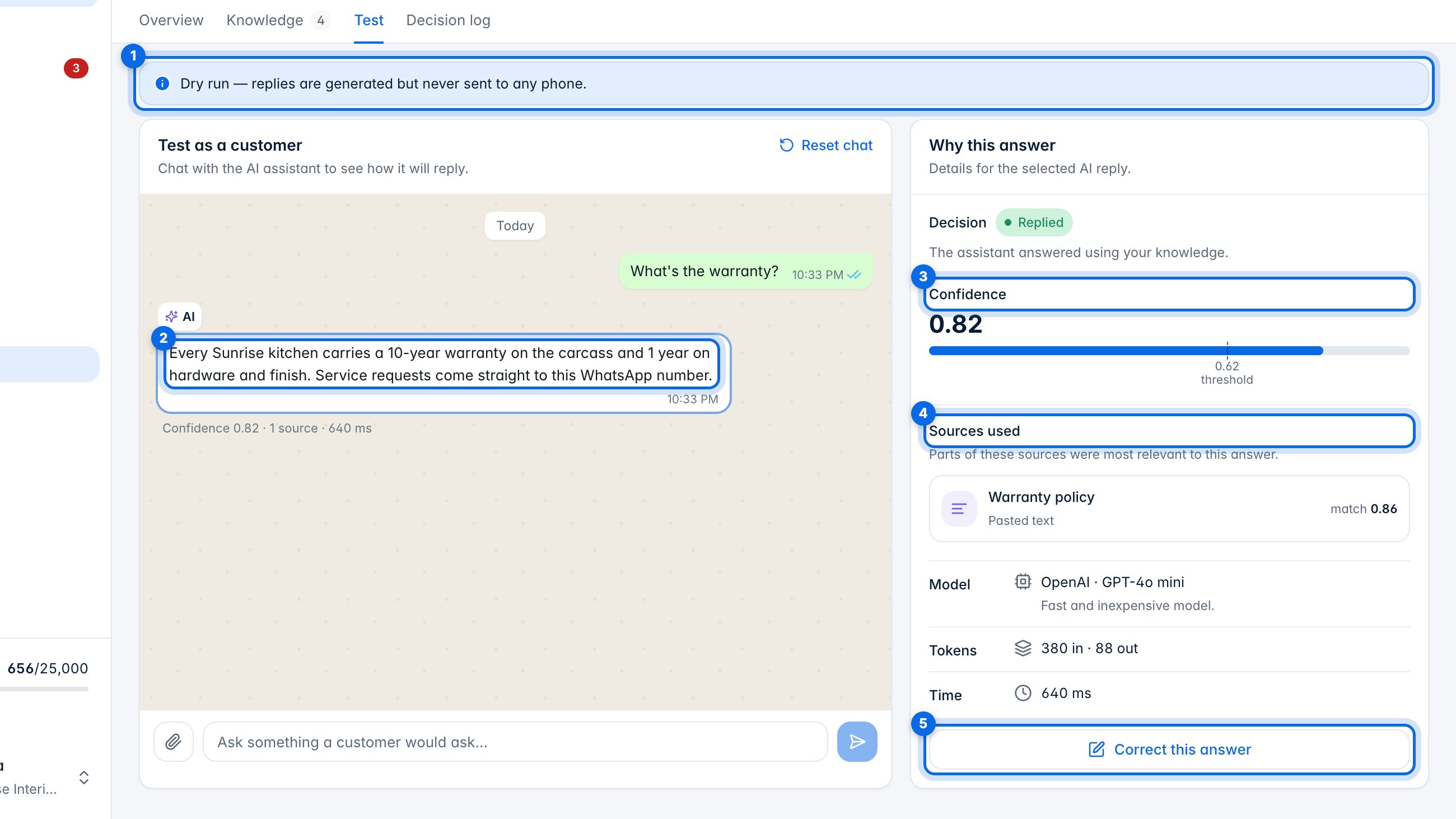
On Test, nothing is sent to any phone (1). Ask something a customer would, and see the reply (2). Why this answer shows the confidence (3) and the sources it used (4). If it's wrong, click Correct this answer (5).
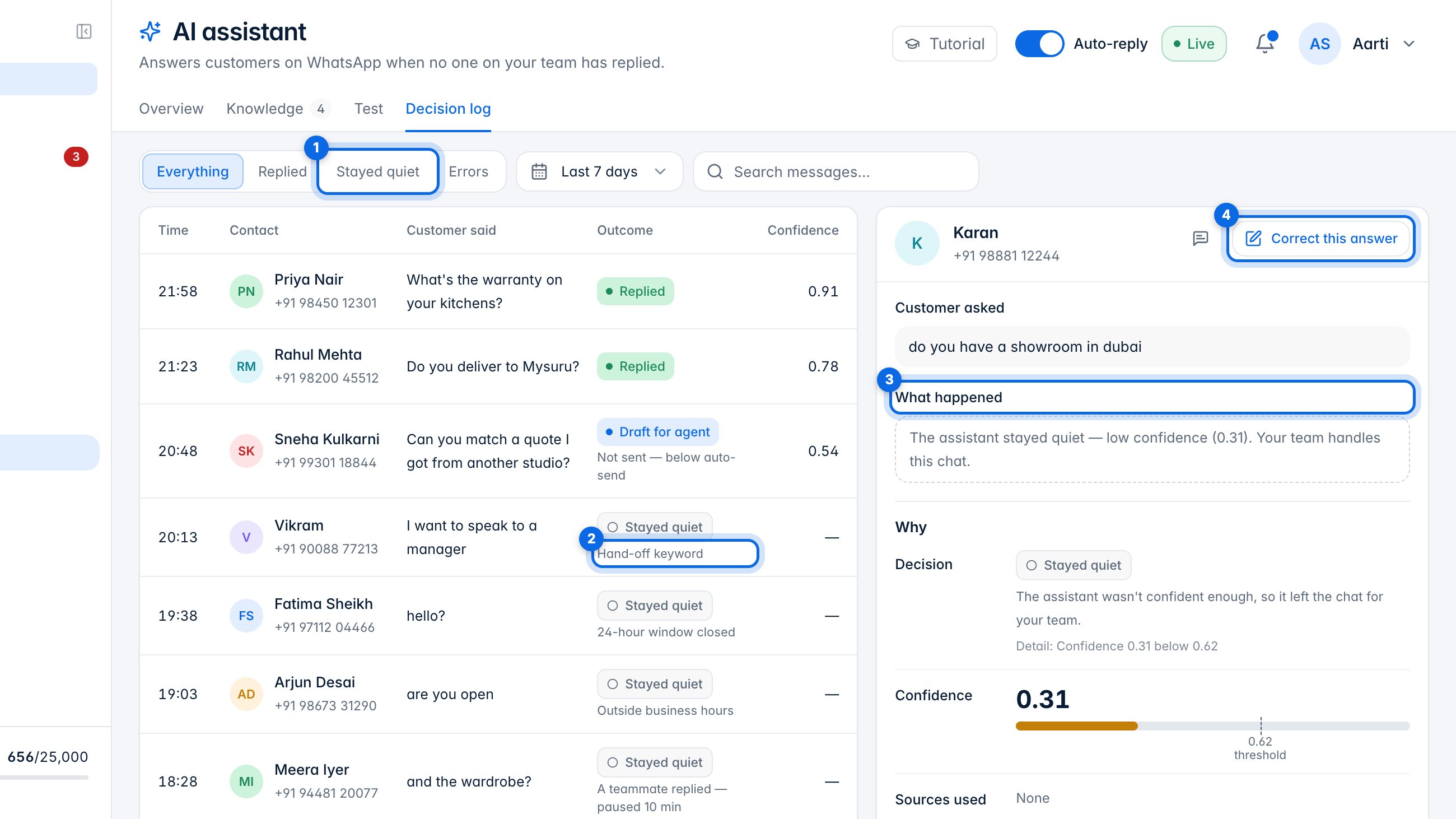
6. Check and correct replies
The Decision log lists every message the assistant saw. Filter by what it did (1); each row says why, like a hand-off keyword (2). Click one to see what happened (3), and Correct this answer (4) saves the right answer for next time.